Website Credentials Best Practices
Website credentials sit quietly in the background of every successful website, yet they are one of the most common sources of risk, delays, and outages. From CMS logins and hosting access to analytics, advertising platforms, and payment gateways, each credential controls a critical layer of your digital infrastructure.
Handled correctly, credentials enable smooth collaboration, secure deployments, accurate data, and reliable revenue flows. Handled poorly, they lead to security breaches, broken tracking, email failures, and expensive downtime.
This guide explains the most common website credentials you will encounter, what each one does, and the best-practice approach to managing them professionally.
CMS Access
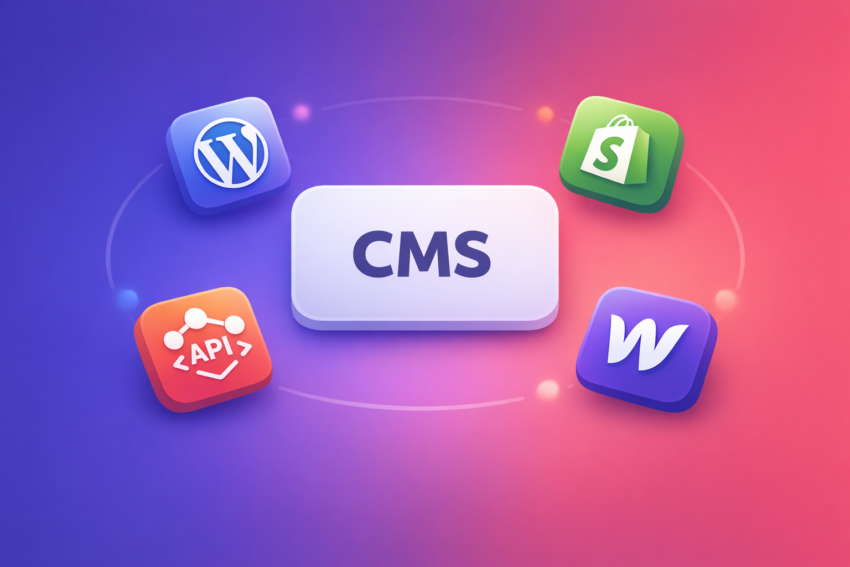
(WordPress, Shopify, Webflow, Headless CMS platforms)
What it is
CMS access controls who can create, edit, publish, and manage content on your website. This includes pages, products, blog posts, media, templates, and in many cases SEO settings and integrations.
Different platforms handle access differently. WordPress uses user roles such as Administrator and Editor, Shopify relies on staff accounts with permissions, Webflow uses workspace and site-level access, and headless CMS platforms often use API keys and role-based permissions.
Why it matters
CMS access governs the integrity of your live site. Incorrect permissions can lead to accidental content deletion, broken layouts, unauthorised changes, or security vulnerabilities.
How to find your CMS credentials
- Check past emails for platform welcome or setup emails (WordPress, Shopify, Webflow)
- Try logging in via /wp-admin (WordPress), /admin (Shopify), or the Webflow dashboard
- Ask your previous developer or agency which CMS was used
- Review your hosting dashboard, many show linked CMS installations
- For headless builds, ask where the CMS is hosted and which service manages content
Best-practice tips
- Grant role-based access, not full admin access by default
- Avoid shared logins, every user should have their own account
- Remove access immediately when staff or agencies roll off
Use strong passwords and enable two-factor authentication
Hosting Provider or Server Access
What it is
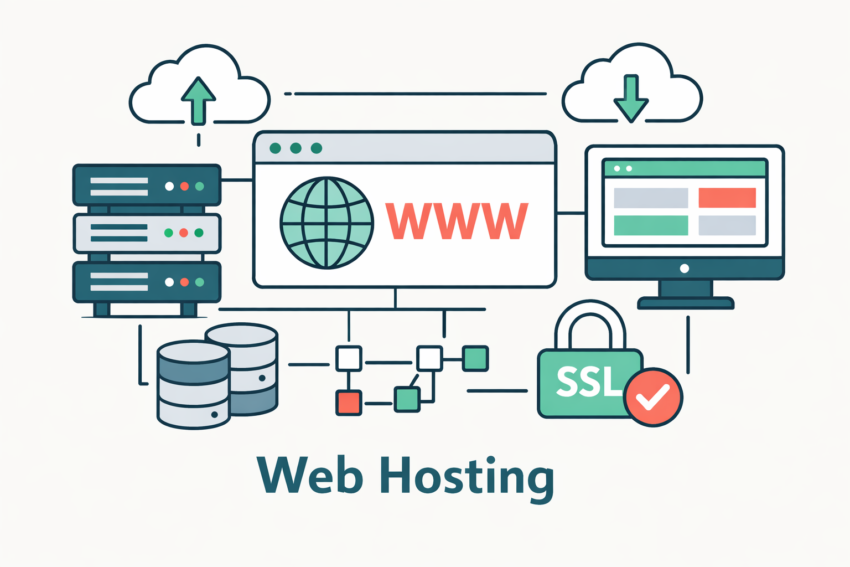
Hosting access controls the environment where your website actually lives. This may include cPanel, Plesk, managed WordPress hosting dashboards, VPS access, cloud platforms, or SSH access to a server.
This layer manages files, databases, backups, server performance, and in many cases staging environments.
Why it matters
Hosting access is effectively root control of your website. Incorrect handling can cause outages, data loss, or security breaches.
How to find your hosting credentials
- Check invoices or billing emails from hosting providers
- Look up the hosting provider via a DNS lookup or WHOIS tool
- Review old onboarding or handover documentation
- Ask your developer or agency where the site is hosted
- Check your CMS dashboard, some show the connected host
Best-practice tips
- Confirm daily automated backups are enabled and tested
- Never email plain-text server credentials
Domain Registrar and DNS Management
What it is
Your domain registrar controls ownership of your domain name, while DNS settings determine where traffic, email, and services are routed.
DNS records control website hosting, email delivery, verification records, subdomains, and integrations with third-party platforms.
Why it matters
DNS misconfigurations are one of the most common causes of site downtime and email failures. Domain access also represents ownership of your brand online.
How to find your domain and DNS access
- Look up your domain using a WHOIS lookup tool
- Check which company you pay annually for your domain
- Search emails for domain renewal or registration notices
- Ask your IT provider or agency where DNS is managed
- Check whether DNS is handled at the registrar or via a CDN such as Cloudflare
Best-practice tips
- Keep domain ownership under a central business account
- Limit DNS edit access to experienced users only
- Document all DNS records before making changes
- Enable domain lock and registrar-level security features
- Avoid frequent DNS changes without clear documentation
Email Hosting Connected to the Domain

(Google Workspace, Microsoft 365, transactional email services)
What it is
Email hosting credentials manage business email accounts and the systems responsible for sending website-generated emails, such as contact forms, order confirmations, and password resets.
This setup typically involves SMTP credentials or API-based authentication, which allow the website or application to send emails securely through the chosen email provider rather than relying on the server alone. Alongside this, specific DNS records are required to verify that the website is authorised to send email on behalf of the domain.
SPF defines which servers are permitted to send email for the domain, DKIM adds a cryptographic signature to prove the message has not been altered, and DMARC tells receiving mail servers how to handle messages that fail these checks. Together, these records improve email deliverability, reduce spam and spoofing risks, and help ensure legitimate emails reach inboxes instead of junk folders.
Why it matters
Incorrect configuration results in emails not sending, landing in spam, or failing silently, which directly impacts enquiries, sales, and user trust.
Most 3rd party hosting providers use a shared server to attempt to send out email and is often blocked by spam filters (particularly by Google and Microsoft), so setting up an SMTP app (such as a Google Gmail API or Microsoft Azure App) will massively improve email deliverability along with correctly configured DNS records.
This can often be a little complex and overwhelming to setup, but our staff may be able to assist, but some configuration is required.
How to find your email credentials and setup
- Check whether your email is hosted on Google Workspace or Microsoft 365 (etc)
- Review DNS records to see where email is routed
- Search for SMTP or API credentials in your CMS or form plugin settings
- Ask your developer how website emails are currently sent
- Test a contact form and confirm where the email is delivered
Best-practice tips
- Separate inbox access from transactional email access
- Use authenticated SMTP or API-based email sending
- Configure SPF, DKIM, and DMARC correctly
- Avoid using personal email accounts for system emails
Test email delivery after any DNS or server change
Analytics Platforms
(GA4, Google Search Console, Looker Studio)
What it is
Analytics credentials provide access to performance data, user behaviour, traffic sources, and conversion tracking. These platforms are critical for decision-making and reporting.
Access is usually managed via Google accounts with varying permission levels.
Why it matters
Loss of access or incorrect permissions can disrupt reporting, break conversion tracking, or lead to data gaps that cannot be recovered.
How to find your analytics access
- Search Google accounts you own for GA4 or Search Console access
- Check if reports are sent regularly via email
- Ask your agency which Google account owns the properties
- Look in Google Tag Manager for linked analytics IDs
- Review CMS plugins that may reference GA4 or tracking IDs
Best-practice tips
- Assign admin access sparingly
- Ensure the business owns the primary admin account
- Maintain at least two admin users for redundancy
- Document GA4 property IDs and Search Console properties
Avoid deleting properties or views without sign-off
Tag Management
(Google Tag Manager)
What it is
Tag Manager controls the deployment of tracking scripts, conversion tags, marketing pixels, and event tracking without editing site code directly.
It acts as the central nervous system for analytics and advertising tracking.
Why it matters
Misconfigured tags can inflate conversions, break tracking, or slow site performance.
How to find your Tag Manager setup
- View page source and search for GTM container IDs
- Check Google accounts associated with analytics access
- Ask your agency or developer if GTM is in use
- Review CMS theme or plugin settings
- Check Google Ads or Meta for linked containers
Best-practice tips
- Use separate containers for production and staging where possible
- Control publish permissions tightly
- Document all tags, triggers, and variables
- Use versioning and never overwrite live configurations blindly
Restrict access to trained users only
Advertising Platforms
(Google Ads, Meta Ads)
What it is
Advertising credentials control paid media accounts, budgets, campaigns, audiences, and conversion integrations.
These platforms often connect directly to analytics and tag management systems.
Why it matters
Incorrect access or ownership can result in lost historical data, billing issues, or unauthorised spend.
How to find your advertising accounts
- Check billing statements for Google or Meta charges
- Look for ad-related emails sent to your business address
- Ask your agency which account your ads run from
- Check Business Manager settings in Meta
- Look for conversion IDs in Tag Manager or analytics
Best-practice tips
- Ensure the business owns the ad account, not an agency
- Grant partner access rather than transferring ownership
- Restrict billing permissions carefully
- Maintain admin access internally at all times
Review connected integrations regularly
Payment Gateways
(Stripe, PayPal, Square)
What it is
Payment gateway credentials handle transaction processing, refunds, subscriptions, and financial data. These systems often integrate with ecommerce platforms via API keys.
Why it matters
Payment credentials are highly sensitive. Misuse can lead to failed payments, compliance issues, or financial exposure.
How to find your payment gateway access
- Check your ecommerce platform’s payment settings
- Review bank statements for gateway deposits
- Search for onboarding emails from Stripe, PayPal, or Square
- Ask your developer which gateway is connected
- Check API keys stored in the CMS or hosting environment
Best-practice tips
- Never share secret API keys in plain text
- Use test and live environments correctly
- Restrict refund and payout permissions
- Rotate API keys periodically
Third-Party Integrations and Plugins
What it is
These include CRM integrations, booking systems, marketing tools, SEO plugins, and custom APIs that extend site functionality.
They often require API keys, OAuth access, or admin-level permissions.
Why it matters
Poorly managed integrations can introduce security vulnerabilities or break core functionality.
How to find active integrations
- Review installed plugins or apps in your CMS
- Check automation tools like Zapier or Make
- Ask your agency what systems connect to the site
- Review API keys stored in environment settings
- Look for recurring subscription charges
Best-practice tips
- Audit active integrations regularly
- Remove unused plugins and API connections
- Store API keys securely, not in code repositories
- Monitor plugin update history and support status
- Limit plugin admin access
CDN and Security Tools
(Cloudflare, firewalls, WAFs)
What it is
CDNs and security tools manage caching, performance optimisation, firewall rules, bot protection, and SSL certificates.
They sit between users and your website, controlling how traffic is handled. They have external caching which in most cases will dramatically speed up website content delivery.
Why it matters
Incorrect configuration can block legitimate users, break site functionality, or expose the site to attacks.
How to find your CDN or security setup
- Check DNS nameservers for Cloudflare or similar services
- Look for security dashboards mentioned in handover docs
- Ask your hosting provider if a CDN is enabled
- Review SSL certificate details in your browser
- Check billing records for CDN services
Best-practice tips
- Keep CDN ownership under the business account
- Restrict firewall rule editing to experienced users
- Document custom rules and exclusions
- Enable two-factor authentication
Monitor security logs and alerts regularly
Final Best-Practice Principles for Credential Management
Across all website credentials, a few principles apply universally:
- Always maintain business ownership of critical accounts
- Avoid shared logins and generic credentials
- Use least-privilege access models
- Document everything, including where credentials live and who owns them
- Revoke access promptly when roles change
- Treat credentials as infrastructure, not admin overhead
A well-managed credential framework reduces risk, improves collaboration, and ensures your website remains stable, secure, and scalable as your business grows.
Sharing Sensitive Details Safely

When you need to provide passwords, API keys, or access details to a developer or agency, avoid sending them via email or Slack. Use Click Click Media’s One-Time Secret Share Tool instead. It generates a secure link that can be viewed once, then permanently destroyed, with optional password protection and configurable expiry.
Need Help Auditing or Securing Your Website Credentials?
If you are unsure who owns your website accounts, where critical access lives, or whether credentials are being managed safely, Click Click Media can help. We regularly audit CMS access, hosting environments, analytics setups, advertising accounts, and third-party integrations to ensure everything is secure, documented, and owned by the business.
Whether you are onboarding a new agency, preparing for a website rebuild, or untangling years of inherited access, our team can step in and bring clarity fast.
Get in touch with Click Click Media to review your website credentials and ensure your digital infrastructure is set up the right way.