
WordPress Maintenance: The Complete Guide for Australian Business (2026)
TL;DR
WordPress powers 43% of all websites. That popularity makes it the most attacked platform on the internet. Most hacks are entirely preventable.
The real risk – Outdated plugins and themes account for over 50% of WordPress hacks. Every update you skip widens your attack surface.
What to do daily – Check uptime, scan for security alerts, verify eCommerce functions. Takes 5 minutes. Catches most problems before they cost you.
What people miss: Database bloat, orphaned media files, expired SSL certificates, and user account audits. All affect performance and security.
The cost of doing nothing: A hacked site costs $500 to $5,000+ to recover. Proper maintenance costs a fraction of that per month.
WordPress maintenance is the ongoing work of keeping your website secure, fast, and reliable. Without a proper WordPress maintenance routine, most business owners discover this the hard way: a hacked site, a plugin conflict that breaks their checkout, or a Google ranking drop caused by uncompressed images and a bloated database.
This guide covers what WordPress maintenance involves, how to structure a WordPress maintenance plan, and what to expect when you hand it to someone else.
What is WordPress maintenance?
WordPress maintenance is every recurring task that keeps your site working. It is ongoing. It covers security, performance, content integrity, and technical health. When a flaw is published it arrives as a CVE record, and our guide to what a CVE is explains how to read the severity score and patch in the right order.
Website maintenance for WordPress is not a one-time project. WordPress receives regular updates, generates log files, accumulates database bloat, and becomes vulnerable as new security exploits are discovered. A site launched and left alone is not a functioning website. It is a liability waiting to become a problem.
Maintenance covers:
- Keeping WordPress core, plugins, and themes updated
- Creating and testing regular backups
- Monitoring for security threats and malware
- Optimising site speed and Core Web Vitals
- Cleaning and optimising the database
- Monitoring uptime and responding to downtime
- Checking for broken links and 404 errors
- Managing user access and permissions
- Renewing SSL certificates and domain names
- Testing contact forms, checkout flows, and other conversion points
Why WordPress maintenance matters for Australian businesses
WordPress powers approximately 43% of all websites globally. That popularity makes it the most targeted platform by hackers. Sucuri’s 2025 research found that outdated plugins and themes account for over half of all compromised WordPress sites.
For Australian businesses, the stakes of poor WordPress maintenance are higher than most owners realise:
Your customers find you on Google. Core Web Vitals are ranking signals. A site that loads slowly and fails mobile checks loses organic rankings to competitors who maintain theirs.
Downtime costs real money. An eCommerce site doing $5,000 per day loses $416 from a two-hour outage. Most of those outages are preventable.
Australian Privacy Act obligations. Under the Privacy Act 1988, businesses with over $3 million in annual turnover have data security obligations. A hacked site that exposes customer records can trigger mandatory breach notifications and penalties. Maintenance is part of meeting those obligations.
WordPress is not self-maintaining. Unlike SaaS platforms that push updates automatically, self-hosted WordPress requires active management. Automatic updates exist but need careful configuration. Applying a major plugin update without testing can break your site just as badly as not updating at all.
The “set and forget” WordPress maintenance myth
Many businesses launch their WordPress site, hand it to a designer, and assume maintenance is included. It rarely is. Design and build projects do not include ongoing maintenance unless explicitly contracted. Check before assuming. When a site needs new templates or features rather than upkeep, that is WordPress development work, scoped separately from maintenance.
The WordPress maintenance checklist: daily, weekly, monthly, and quarterly tasks
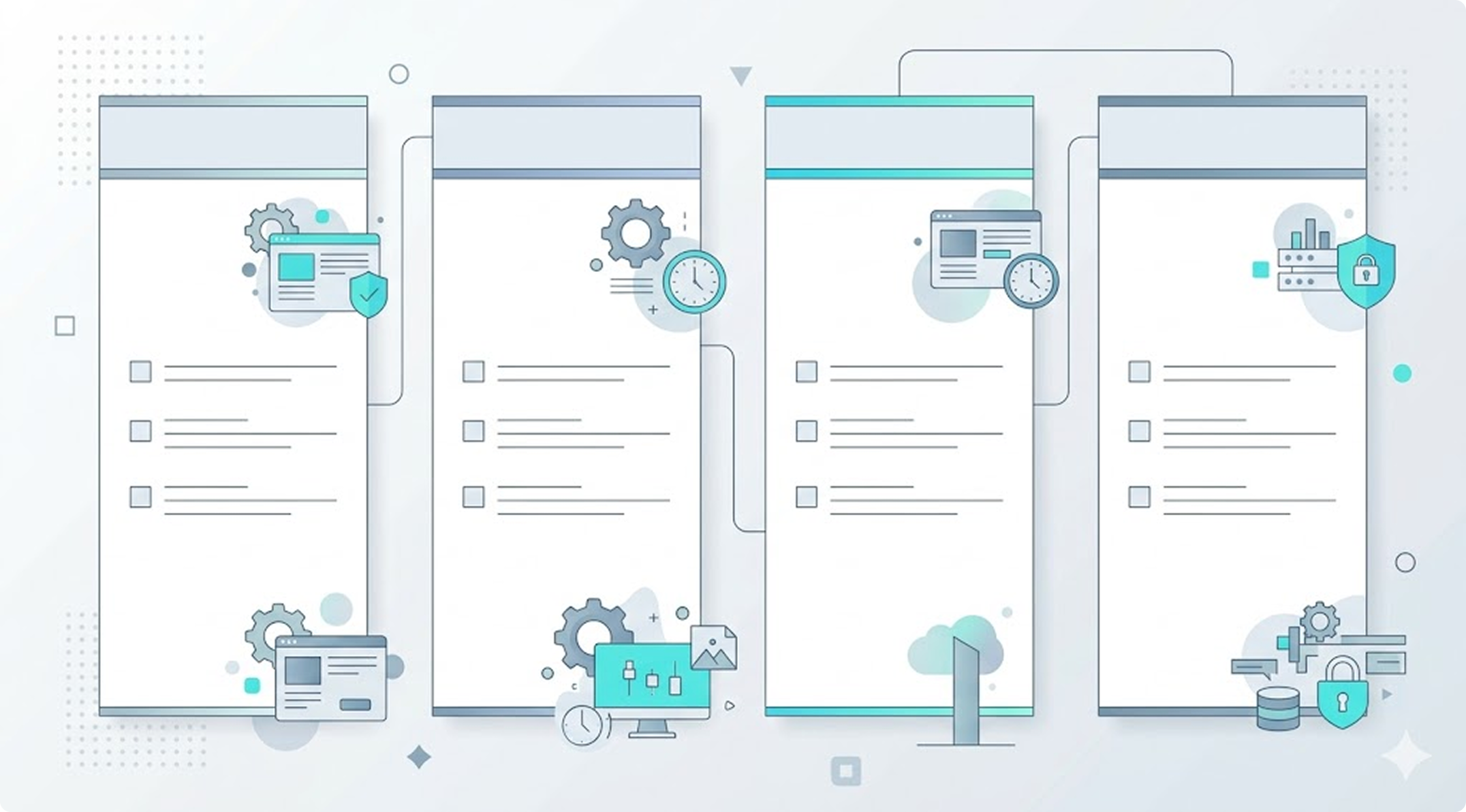
Organise your WordPress maintenance tasks by frequency. Doing everything at once creates an overwhelming block of work. Spreading tasks across daily, weekly, monthly, and quarterly slots makes it manageable.
| Task | Frequency | Why it matters |
|---|---|---|
| Check uptime | Daily | Confirm the site is loading and key pages are accessible. Automated tools make this passive. |
| Test contact forms and checkout | Weekly | Conversion points can break silently after updates. Test manually each week. Use GA4 anomaly alerts for real-time coverage between manual checks. |
| Review security alerts | Daily | Check for failed login warnings, malware notices, or unusual admin activity in your security plugin. |
| Backup the site | Weekly | Files and database. Store off-site. For eCommerce or frequently updated sites, back up daily. |
| Update plugins and themes | Weekly | Check for available updates. Stage or test before applying to production on complex sites. |
| Check for broken links | Weekly | 404 errors hurt both UX and SEO. Catch and redirect them before they accumulate. |
| Review spam comments | Weekly | Akismet catches most, but unchecked spam clogs your database and can contain malicious links. |
| Update WordPress core | Monthly | Major core updates require testing. Minor security releases can be applied as they arrive. |
| Optimise the database | Monthly | Remove post revisions, spam, transients, and orphaned data. Reduces bloat and improves query speed. |
| Check Core Web Vitals | Monthly | LCP, INP, and CLS scores in Google Search Console. Declining scores signal performance issues. |
| Audit user accounts | Quarterly | Remove users who no longer need access. Unused admin accounts are an active security risk. |
| Test backup restoration | Monthly | A backup you cannot restore is not a backup. Test the actual restoration process quarterly at minimum. |
| Optimise images | Monthly | Scan the media library for unoptimised uploads. Large image files are the most common cause of slow LCP. |
| Full security scan | Quarterly | Deep malware scan, file integrity check, review of login activity logs. |
| Review and remove unused plugins | Quarterly | Inactive plugins are still an attack surface if not deleted. Deactivated is not safe enough. |
| Check PHP version | Quarterly | PHP 8.1 minimum recommended in 2026. Older versions receive no security patches. Running PHP 7.x is a significant risk. |
| Review SSL certificate expiry | Quarterly | An expired SSL certificate kills trust signals, triggers browser warnings, and tanks rankings. |
| Domain renewal check | Quarterly | Expired domains are hijacked within hours. Check renewal dates well in advance. |
WordPress backups: your safety net for every maintenance task
Backups are the safety net for every WordPress maintenance task. Before updating a plugin, modifying the database, or running a migration: backup first.
A backup you cannot restore is not a backup. Many businesses discover this at exactly the wrong moment.
What to back up
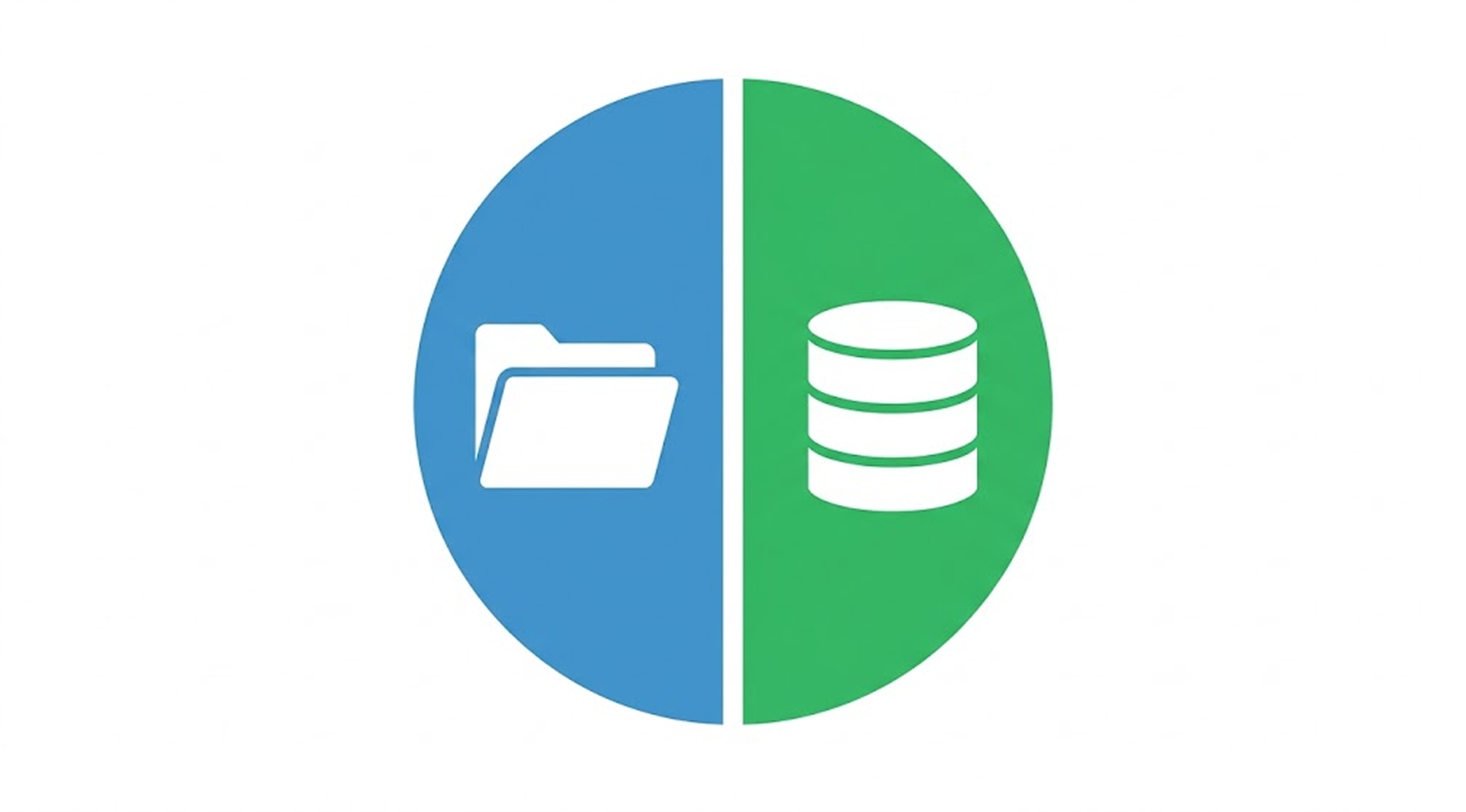
A complete WordPress backup covers two components:
- Files: Your WordPress core files, theme files, plugin files, uploads directory, and any custom code.
- Database: All your posts, pages, settings, user data, WooCommerce orders, form submissions, and plugin configuration.
Both are required. Files without the database gives you a broken shell. Database without the files gives you content with no design or functionality.
Where to store backups
Store backups off-site. If your server is compromised or your host has an outage, an on-server backup is worthless. Options include:
- Amazon S3 or compatible storage (Backblaze B2, Wasabi)
- Google Drive or Dropbox
- A separate Australian hosting account (keeps data onshore under Australian Privacy Act requirements)
Backup frequency
- Weekly minimum for brochure sites with infrequent content changes
- Daily for sites with regular blog publishing, form submissions, or customer data
- Before every update regardless of frequency. Always back up immediately before applying plugin, theme, or core updates
- Real-time or hourly for eCommerce sites where orders are being placed continuously
Recommended backup plugins
Duplicator Pro – CCM’s preferred backup and migration tool. Creates complete site packages covering files and database. Handles full backups, scheduled runs, and site migrations. The free version covers most small sites; Pro adds cloud storage and scheduled automation.
Test your backups
Test your backup restoration at least quarterly. Restore a recent backup to a staging environment and confirm the site loads correctly. Finding out your backups are broken during a crisis is far more stressful than finding out during a routine test.
WordPress updates: core, plugins, and themes
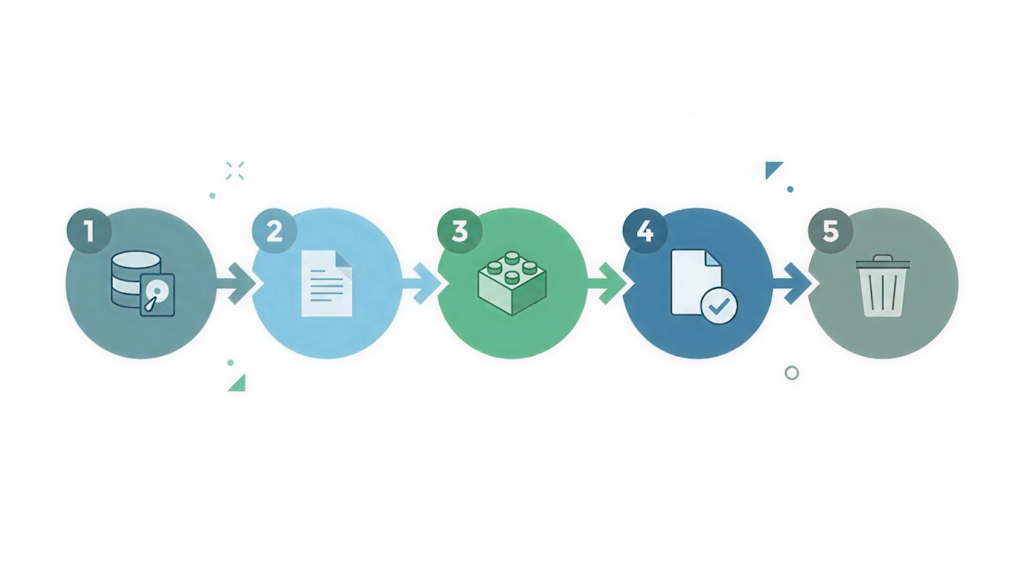
Keeping WordPress, plugins, and themes updated is the highest-impact security task in any WordPress maintenance routine. Most successful hacks exploit known vulnerabilities that already have patches available.
WordPress core updates
Keep your WordPress version current. WordPress releases two types of updates:
- Minor releases (e.g. 6.4.1 to 6.4.2): Security and bug fixes. Apply these promptly. The risk of not applying is higher than the risk of breaking something.
- Major releases (e.g. 6.4 to 6.5): New features that may affect theme and plugin compatibility. Back up first, test on staging, then apply to production.
What the latest WordPress versions mean for your WordPress maintenance routine
WordPress 6.8 “Cecil” (released April 2025) and WordPress 6.9 (released December 2025) both introduced changes that directly affect how you approach maintenance in 2026.
WordPress 6.8 key maintenance-relevant changes:
- Bcrypt password hashing: WordPress 6.8 upgraded from MD5 to bcrypt for password storage: a significant security improvement. Sites running 6.8 or later have meaningfully stronger credential protection out of the box. Sites still on older versions do not.
- Speculative loading: WordPress 6.8 introduced speculative loading, which preloads the next page when a visitor hovers over an internal link. This can improve perceived page speed with no configuration required. This only applies to updated installs.
- Style Book for classic themes: The expanded Style Book and block editor improvements make it easier to maintain design consistency across theme updates, reducing the risk of visual breakage after a theme update.
WordPress 6.9 key maintenance-relevant changes:
- PHP 8.5 compatibility: WordPress 6.9 raises the minimum recommended PHP version. Sites still running PHP 7.x are now further behind on both the security and compatibility curve.
- Improved Site Health tools: The Site Health screen (Tools → Site Health) received enhancements in 6.9, giving more actionable recommendations about your hosting environment, PHP version, and plugin conflicts. Make this part of your monthly maintenance check.
- Enhanced speculative loading: 6.9 extends speculative loading to browser history navigation, making page transitions feel faster for returning visitors.
Check your WordPress version now
Log in to your dashboard and look at the bottom of any admin page. If you are not on WordPress 6.8 or later, you are missing meaningful security improvements including bcrypt password hashing. Updating to the current version is one of the highest-impact maintenance actions you can take today. Check your server’s PHP version while you are there, because PHP 8.2 reaches end of life on 31 December 2026.
Plugin and theme updates
Most WordPress sites run 10 to 30 plugins. Each is a potential entry point. Apply updates weekly, but carefully on complex sites:
- Back up before updating.Always. Even a minor plugin update can conflict with your theme or another plugin.
- Read update notes.Major version changes (e.g. 3.x to 4.x) in a plugin often include breaking changes. Check before applying.
- Update one plugin at a timeon critical sites. If something breaks, you know exactly which plugin caused it.
- Test core pages after updating.Homepage, key landing pages, checkout, contact form. A plugin conflict can break a specific template without affecting the rest of the site.
- Delete unused plugins entirely.Deactivated plugins are still on your server and still a potential security risk. If you are not using it, delete it.
Automatic updates: useful but dangerous without safeguards
WordPress allows you to enable automatic updates for plugins. On complex sites, this is risky. An update can fire at 3am, conflict with your theme, and leave the site broken for hours before anyone notices. If you enable automatic updates, pair them with uptime monitoring and automated backup-before-update workflows.
WordPress maintenance: security hardening
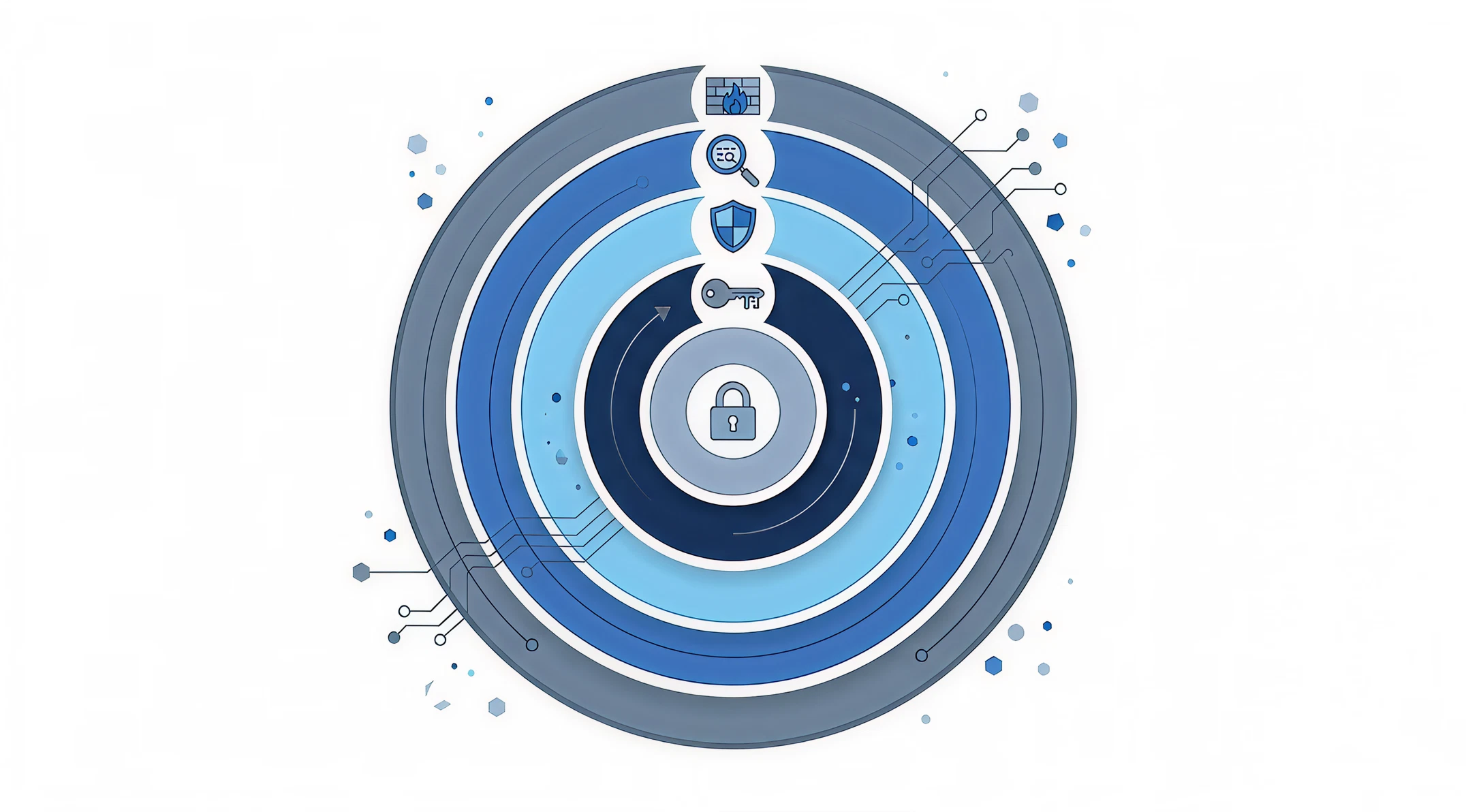
WordPress website security is not a single plugin you install and forget. It is a layered approach where multiple measures overlap to reduce your attack surface. No single measure is enough.
Understanding the WordPress maintenance security landscape
Understanding where attacks come from makes the defences logical:
- Outdated plugins and themes (most common): known exploits are publicly documented once a patch is released, making unpatched sites easy targets
- Weak or reused passwords: brute force attacks test thousands of password combinations per minute
- Default login URL (/wp-admin): automated bots scan for this and attempt logins constantly
- Excessive admin accounts: every admin account with a weak password is a potential entry point
- PHP code injection via file uploads: poorly configured upload handling can allow malicious files to be executed on your server
- XML-RPC attacks: a WordPress API endpoint that is enabled by default and frequently targeted for brute force attempts
Security measures to implement
Strong passwords and two-factor authentication
All admin accounts need passwords generated by a password manager (20+ characters, unique to your WordPress install). Add two-factor authentication (2FA) on every admin account. Even a compromised password becomes useless. WP 2FA or Wordfence both handle this simply. While you are in wp-config.php, a fresh set of keys from our WordPress SALT generator signs every stored login cookie out at once.
Limit login attempts
Block IP addresses after a set number of failed login attempts. Most security plugins include this feature. Combine it with a reCAPTCHA on the login page.
Change the default login URL
Move /wp-admin to a custom URL like /site-access. This stops the majority of automated bot scanning. WPS Hide Login handles this in a single setting.
Disable XML-RPC if not needed
Disable XML-RPC unless you specifically need it for the WordPress mobile app or a third-party integration. Most business sites have no use for it. It is a significant attack surface.
Web Application Firewall (WAF)
A WAF blocks malicious requests before they reach WordPress. Cloudflare‘s free plan includes a basic WAF. Wordfence Premium and Sucuri include more thorough rulesets.
Regular malware scanning
Run automated malware scans at least weekly. Wordfence compares your files against known clean versions and flags unexpected changes. An unexpected change is an early indicator of a compromise.
Recommended security plugins
Wordfence Security: CCM’s recommended security plugin. Covers firewall, malware scanning, login security, and live traffic monitoring. The free version is strong for most sites. Premium adds real-time threat intelligence and faster firewall rule updates.
WordPress performance: maintenance tasks that speed up your site
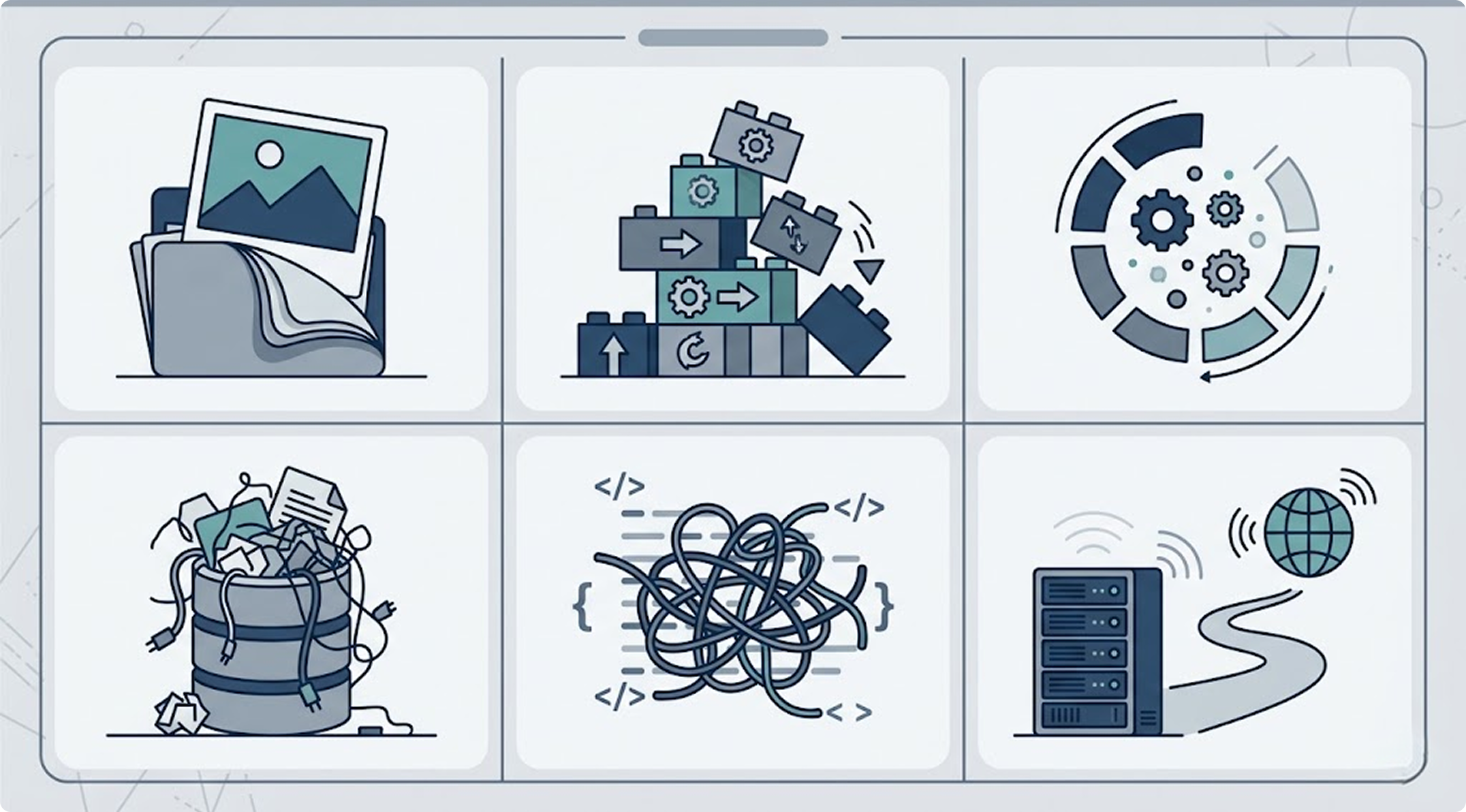
Performance optimisation is a core WordPress maintenance responsibility. It is a ranking factor and a conversion factor. Google’s Core Web Vitals (LCP, INP, and CLS) are ranking signals measured from real Chrome user data. A neglected WordPress site accumulates performance debt quietly and consistently.
The main causes of WordPress performance degradation
- Unoptimised images: the most common cause of slow LCP scores. Every image uploaded through the media library should be compressed before upload or handled automatically by an optimisation plugin.
- Plugin bloat: each active plugin adds code that loads on every page. Some plugins add significant page weight even on pages where their features are not needed.
- No caching: without caching, every page request rebuilds the page from scratch using PHP and database queries. A good caching plugin generates static HTML files that serve in milliseconds.
- Database bloat: post revisions, transients, and spam accumulate. A 50MB database query is significantly slower than a 5MB one.
- Render-blocking JavaScript and CSS: scripts that load before the page renders delay when the user sees content.
- Slow Australian hosting: servers located in the US serving Australian visitors add 150–200ms of latency per request. Use Australian-based hosting or a CDN with Australian edge nodes.
Performance maintenance tasks
- Check LCP, INP, and CLS in Google Search Console monthly. A page moving from Good to Needs Improvement needs investigating before it becomes Poor.
- Compress all new image uploads. Use WebP format where supported (all modern browsers). CCM handles this automatically on managed sites.
- Run a page speed test (Google PageSpeed Insights or GTmetrix) monthly. A sudden drop usually signals a plugin conflict or a new unoptimised image.
- Clear and regenerate your caching plugin’s cache after every major update.
Recommended performance plugins
CCM uses custom performance tooling
CCM’s managed WordPress maintenance service uses custom internal tools for caching, image optimisation, and performance monitoring rather than off-the-shelf plugins. This gives tighter control over how optimisations are applied across different hosting environments. If you are managing performance yourself, Google PageSpeed Insights and GTmetrix are the right starting points for identifying what needs fixing.
WordPress maintenance: database cleaning and optimisation
Database maintenance is a monthly WordPress maintenance task many site owners overlook. The WordPress database stores everything: posts, settings, user data, plugin configuration, and form submissions. Over time it accumulates junk that slows every page load.
What accumulates in the database
- Post revisions: WordPress saves every draft revision. An active blog with 500 posts might have 5,000 revision records. These add up.
- Trashed items: Deleted posts, pages, and comments sit in the trash until manually emptied.
- Transients: Temporary cache data stored by plugins. Expired transients accumulate as orphaned data.
- Spam comments: Even with Akismet running, spam builds up in the database.
- Orphaned data: When you delete a plugin, its database tables and options often remain. These ghost records serve no purpose.
- Auto-draft posts: WordPress generates auto-drafts when you open the editor. These accumulate and are never automatically cleaned.
Database maintenance tasks
Run these tasks monthly, or more often on high-traffic sites:
- Delete post revisions. Limit future revisions by adding
define('WP_POST_REVISIONS', 5);to wp-config.php to cap revisions at 5 per post. - Empty the trash. Posts, pages, and comments in the trash are still stored in the database. Empty it monthly.
- Delete expired transients. Plugins like CCM handles this on managed sites. If self-managing, a dedicated database cleaner plugin can help.
- Optimise database tables. Running the MySQL OPTIMIZE TABLE command defragments tables and reclaims space. CCM handles this automatically on managed sites.
- Review the wp_options table. This table commonly contains orphaned plugin settings from deleted plugins. Bloat here slows down every page load.
Uptime monitoring as part of WordPress maintenance
Uptime monitoring is a core part of any WordPress maintenance plan. You cannot fix downtime you do not know about. Uptime monitoring tells you when the server stops responding. But it will not catch a form that stops submitting or a checkout quietly failing. Uptime monitoring tools check your site at regular intervals (every 1 to 5 minutes) and send you an alert the moment it stops responding.
For most Australian sites, UptimeRobot‘s free plan covers the basics: 5-minute check intervals, up to 50 monitors. For eCommerce or revenue-critical sites, Pingdom or StatusCake offer 1-minute intervals and more detailed alerting.
What to monitor as part of your WordPress maintenance routine
- Homepage: confirms the server is responding
- Checkout or key conversion page: confirms the critical user path is working
- Contact form thank-you page: confirms forms are submitting correctly
- A deep page: confirms the database is responding, not just the cached front page
Using GA4 to automate your WordPress maintenance monitoring
Manual testing catches obvious breaks. But gradual degradation in your WordPress maintenance routine is harder to spot. A smarter WordPress maintenance approach uses GA4 to monitor conversion events automatically. A checkout that stops working at 11pm on a Saturday can bleed revenue for hours before anyone notices. GA4 can fill that gap automatically.
If your forms and WooCommerce checkout are tracked in GA4 (via Google Tag Manager or the native WooCommerce integration), you can set up anomaly detection alerts that email you when conversion event volume drops unusually compared to the previous week. A sudden drop in purchase or generate_lead events is a strong signal something has broken, even if your uptime monitor shows the site is technically loading.
How to set this up
- Make sure your key events are tracked in GA4. Contact form submissions, WooCommerce purchases, and checkout steps should each fire a distinct GA4 event. If they are not tracked yet, that is the starting point. CCM’s GA4 and GTM implementation service can set this up cleanly if you need it.
- Create a custom alert in GA4. Go to Advertising → Insights → Custom insights → New custom insight. Select your key conversion event, set the condition to anomaly detection, and set the comparison to the same day the previous week.
- Set email delivery. Add the email addresses that should receive the alert. For business-critical sites, include whoever handles both marketing and technical support.
- Set a volume threshold. For low-traffic sites, anomaly detection can fire too often on normal variation. Add a minimum event count threshold so alerts only fire when there is a statistically meaningful drop.
What to alert on
Useful events to monitor:
purchase(WooCommerce orders),generate_lead(form submissions),begin_checkout(checkout funnel entry), andadd_to_cart(eCommerce intent). A drop in any of these at normal traffic levels means something in your conversion path has broken, not that traffic dropped.
What to do when downtime is detected
An alert with no action plan is just noise. Know in advance:
- Who receives the alert and who is responsible for acting on it
- Where your hosting support contact details are
- How to access your most recent backup and restore it
- Whether you have a maintenance partner on call who can respond
WordPress maintenance mode: what it is, how to use it, and how to exit it
WordPress maintenance mode is a useful WordPress maintenance tool. It shows visitors a holding page instead of your live site. Use it during major updates, migrations, and redesigns so visitors never see a broken or half-updated state.
How WordPress maintenance mode works
During an update, WordPress creates a .maintenance file in the root directory and shows a default “Briefly unavailable for scheduled maintenance” message. For routine automatic updates this lasts only seconds.
For longer work, use a dedicated plugin. It shows a branded holding page rather than the default error message.
How to enable maintenance mode in WordPress
- Install a maintenance mode plugin such as SeedProd, WP Maintenance Mode, or LightStart.
- Configure your holding page. Add your logo, a brief message explaining when the site will be back, and optionally an email capture form to notify visitors when you return.
- Whitelist your own IP address so you can view the live site while visitors see the maintenance page. This lets you verify changes as you work.
- Enable maintenance mode in the plugin settings before beginning your update or migration work.
- Disable maintenance mode once you have tested the site and confirmed it is working correctly.
Stuck in maintenance mode?
If WordPress gets interrupted mid-update, the “Briefly unavailable” message can get stuck. The fix: connect via FTP or your hosting file manager, find the WordPress root directory, and delete the
.maintenancefile. The site returns immediately.
When to use maintenance mode
- During major WordPress core version upgrades
- During theme or page builder migrations
- When applying database restructuring updates from plugins
- During full site redesigns or URL restructures
- During hosting migrations (use it on both old and new servers)
Broken links and 404 errors: a WordPress maintenance essential
Broken link checking is a weekly WordPress maintenance task. Broken links create dead ends for visitors, hurt crawlability, and signal to Google your site is not looked after. Check for them weekly. A 404 error on an internal link is a wasted click. A 404 on a page that other sites link to wastes the SEO equity those backlinks carry. Backlinks take real effort to earn through white-hat link building, so keeping their value with a redirect is cheap insurance.
How broken links happen
- External websites you have linked to change their URL structure or go offline
- Your own pages are deleted or given new URLs without redirects being set up
- Plugin-generated pages stop existing when a plugin is removed
- Typos in manually entered URLs in the content editor
How to fix broken links
Use Screaming Frog (free under 500 pages), Google Search Console’s Coverage report, or the Broken Link Checker plugin to find 404s.
For internal broken links: fix the link to point to the correct current URL.
For deleted pages with external backlinks: set a 301 redirect from the old URL to the most relevant current page. The Redirection plugin or .htaccess rules both work.
For external links you cannot control: update the link on your site or remove it if no good replacement exists.
WordPress maintenance: user and access management
User account management is an often-forgotten element of WordPress maintenance. Every user account is a potential entry point. Quarterly audits are non-negotiable, especially on sites with multiple contributors, agencies, or contractors who may have had access at various points. When a contractor needs a login, send it through a one-time secret link that expires after a single view, not by email.
User management best practices
- Principle of least privilege: Give users only the access level they need. An occasional guest blogger does not need administrator access. They need Author access.
- Remove inactive accounts: Past employees, freelancers, and former agency contacts who still have admin access are a security risk. Delete their accounts or downgrade them to Subscriber.
- Require strong passwords: WordPress lets you force strong passwords on account creation. Use it.
- Enable 2FA for all admins: Two-factor authentication on administrator accounts prevents almost all brute force attacks from succeeding even if the password is known.
- Audit login activity: Security plugins log login attempts and successful logins. Review these periodically for unexpected access from unfamiliar locations.
- Use role-appropriate access for agencies: When handing access to a developer or maintenance provider, create a new account for them at the appropriate access level. Do not share your own administrator credentials.
SSL certificates and domain renewal: a WordPress maintenance essential
SSL certificate management is often overlooked in WordPress maintenance plans. An expired SSL certificate is an entirely preventable crisis. It displays a security warning to every visitor, collapses your search rankings almost immediately, and destroys trust. All because of a renewal date that was not calendared.
SSL certificate management
Most Australian hosts (VentraIP, SiteGround, Kinsta, WP Engine) include Let’s Encrypt SSL that auto-renews every 90 days. The risk is silent failure. A misconfigured cron job or a DNS issue can prevent renewal with no visible error until the certificate has already expired.
Check your SSL expiry date quarterly. Set a calendar reminder 30 days before it renews as a manual backstop. Most hosting control panels display the current certificate status and expiry date. Free tools like SSL Labs let you check your certificate from outside your hosting account.
Domain renewal management
Expired domains are taken over within hours by squatters. Recovering a hijacked .com.au can be expensive, slow, and sometimes impossible. auDA has specific eligibility rules that complicate recovery.
- Enable auto-renew on your domain registration
- Ensure the payment method on file with your registrar is current
- Set a calendar reminder 60 days before expiry as a manual backup check
- Keep registrar login details documented in a secure location separate from the site itself
WordPress maintenance cost in Australia: what to expect in 2026

WordPress maintenance cost depends on how much you are willing to do yourself and how complex your site is. Here is a realistic breakdown for 2026:
| Approach | Monthly cost | Best for | Limitations |
|---|---|---|---|
| DIY | $0 to $50/mo in tool costs | Technically confident owners with simple brochure sites and plenty of time | Time cost is significant. No coverage for incidents outside business hours. |
| Managed hosting (Kinsta, WP Engine) | $30 to $200/mo | Sites that want server-level maintenance handled but still manage content and plugins themselves | Does not cover plugin updates, security scanning, or performance optimisation. |
| Freelancer | $100 to $300/mo | Small business sites with modest maintenance needs | Single point of failure. Response time varies. May lack specialised security expertise. |
| WordPress maintenance agency | $200 to $800/mo | Business-critical sites, eCommerce, sites with regular development work, or sites with compliance requirements | Higher cost than DIY. Overkill for a simple brochure site with minimal traffic. |
The cost of a hack makes maintenance costs look small. Professional malware removal in Australia typically runs $500 to $3,000. A data breach on top of that brings legal costs, regulatory notifications, and reputation damage.
What a maintenance plan should include
Any reputable WordPress maintenance plan should clearly cover: off-site backups, weekly plugin and theme updates, monthly core updates, uptime monitoring, security scanning, performance checks, and monthly reporting. If a plan does not specify these, ask what it actually covers before signing.
DIY WordPress maintenance vs professional WordPress maintenance support
The right approach to WordPress site maintenance depends on your site’s complexity, your technical confidence, and how much the site is worth to your business.
When DIY WordPress maintenance is appropriate
- You run a simple brochure site with 5 to 10 pages and no eCommerce
- You are comfortable working inside WordPress and using FTP
- You can dedicate 2 to 4 hours per month consistently to maintenance tasks
- Downtime for a few hours would be inconvenient but not commercially damaging
When outsourcing WordPress maintenance makes more sense
- Your site generates leads or revenue: downtime has a direct financial cost
- You run WooCommerce with customer data and payment processing
- You have compliance obligations (healthcare, finance, legal)
- You have had a security incident and want professional monitoring going forward
- Plugin updates have broken your site before and you are not confident handling the recovery
- Your time is worth more than the monthly maintenance cost
Click Click Media (CCM) provides professional WordPress maintenance support and services for Australian businesses via WordPress maintenance services for Australian businesses including weekly updates, off-site backups, uptime monitoring, security scanning, and monthly performance reports. For businesses that have outgrown DIY maintenance, it removes the risk entirely.
WordPress maintenance tools: what to use and why
The right tools reduce the time WordPress maintenance takes without cutting corners. Here is a consolidated list by function: Here is a consolidated list of the tools referenced throughout this guide, organised by function:
Backups
- Duplicator Pro: CCM’s preferred backup and migration tool
Security
- Wordfence: CCM’s recommended security plugin for firewall, malware scanning, and login security
Performance, database optimisation, and uptime monitoring
- CCM’s managed maintenance service uses custom internal tooling for caching, image optimisation, database cleaning, and uptime monitoring. These are configured specifically for each client’s hosting environment.
- For self-managed sites: Google PageSpeed Insights and GTmetrix are the right starting points for performance diagnostics.
- Uptime monitoring: UptimeRobot is free and sufficient for most sites (5-minute intervals). Pingdom or StatusCake for revenue-critical sites needing 1-minute checks.
Link checking and redirects
- Screaming Frog (free under 500 pages) for identifying broken links and 404s
- Redirection plugin for managing 301 redirects without touching .htaccess
Maintenance mode
- SeedProd or LightStart for branded holding pages during major updates
Site health and multi-site management
- Google Search Console for Core Web Vitals and coverage monitoring
- MainWP or ManageWP for agencies or developers managing multiple WordPress sites from one dashboard
FAQs
What is WordPress maintenance?
WordPress maintenance (also called a WordPress care plan or website maintenance service) is the ongoing set of tasks that keep a WordPress website secure, fast, and reliable. It includes regular updates to WordPress core, plugins, and themes; creating and testing backups; security monitoring and malware scanning; performance optimisation; database cleaning; uptime monitoring; and SSL and domain management. Without a proper WordPress maintenance routine, WordPress sites become vulnerable to security exploits, slow down, and are at risk of unexpected downtime.
How often does WordPress need to be maintained?
Some tasks need daily attention (uptime monitoring, security alerts), some weekly (plugin updates, backups, broken link checks), and some monthly (core updates, database optimisation, Core Web Vitals review, user account audits). Quarterly tasks include full security scans, removing unused plugins, and checking SSL certificate and domain renewal dates. The frequency depends partly on your site’s complexity and how much traffic and activity it handles.
How do I put my WordPress site into maintenance mode?
Install a maintenance mode plugin such as SeedProd, WP Maintenance Mode, or LightStart. Configure your holding page with a message and estimated return time, whitelist your own IP address so you can view the live site while working, then activate maintenance mode in the plugin settings. Disable it once you have tested your changes. If WordPress gets stuck in maintenance mode after an interrupted update, connect via FTP or your hosting file manager, navigate to the WordPress root directory, and delete the .maintenance file.
How do I get my WordPress site out of maintenance mode?
If you used a plugin to enable it, turn it off in the plugin settings. If WordPress is stuck showing “Briefly unavailable for scheduled maintenance” after an interrupted update, connect to your server via FTP, cPanel File Manager, or SSH, navigate to your WordPress root directory (usually public_html), and delete the file named .maintenance. Your site will return to normal immediately. Note: this file may be hidden, so enable “show hidden files” in your FTP client or file manager.
How much does WordPress maintenance cost in Australia?
DIY maintenance costs only the time you invest plus $0 to $50 per month in tool subscriptions. Managed hosting (Kinsta, WP Engine) costs $30 to $200 per month but only covers server-level maintenance, not plugin updates or security scanning. Hiring a freelancer typically costs $100 to $300 per month. A professional WordPress maintenance agency typically costs $200 to $800 per month depending on site complexity and the scope of work included. In most cases the monthly cost of maintenance is significantly less than the cost of recovering from a hack or extended downtime.
Can I do WordPress maintenance myself?
Yes, if your site is relatively simple, you are comfortable in the WordPress dashboard and with basic server access, and you can commit consistent time to it. The checklist in this guide covers the tasks involved. The risk in DIY maintenance is that it requires discipline and the ability to troubleshoot when something goes wrong after an update. For business-critical sites, eCommerce, or sites with compliance obligations, a professional maintenance arrangement is generally the more prudent choice.
What happens if I do not maintain my WordPress site?
Unmaintained WordPress sites face several predictable problems. Outdated plugins and themes create security vulnerabilities that are actively exploited by automated bots. The majority of WordPress hacks exploit known vulnerabilities that already have patches available. Performance degrades over time as the database accumulates bloat and images are never optimised. Search rankings can decline as Core Web Vitals scores deteriorate. SSL certificates can expire, triggering browser security warnings. Eventually, an unpatched plugin vulnerability, an expired certificate, or a plugin conflict will cause significant downtime or a full compromise that requires professional recovery work.
Does WordPress update automatically?
WordPress can apply minor core updates automatically by default. Major core releases require manual action. Plugins and themes do not update automatically unless you specifically enable this for each one. Automatic updates are convenient but carry a risk of plugin conflicts on complex sites. If you enable automatic updates, pair them with uptime monitoring so you are alerted immediately if an auto-update breaks something.
How do I back up my WordPress site?
Use Duplicator Pro to back up both your files and database. Schedule automated backups, configure off-site storage such as Amazon S3 or Google Drive, and test restoration at least quarterly.
What is the difference between WordPress maintenance mode and a care plan?
WordPress maintenance mode is a temporary holding page displayed to visitors while you perform updates or changes: it is a feature within WordPress. A WordPress care plan (sometimes called a maintenance plan or maintenance package) is a service agreement where an agency or developer handles the ongoing upkeep of your site including updates, backups, security monitoring, and performance checks. The two terms sound similar but refer to completely different things.
Prefer someone else to handle this?
Prefer someone else to handle this?
Most business owners have better things to do than spend Sunday afternoons on WordPress maintenance tasks like updating plugins and reviewing database logs. Click Click Media (CCM) provides ongoing WordPress maintenance for Australian businesses: weekly updates, off-site backups, uptime monitoring, security scanning, and monthly reporting. Set and forget. Properly.