
How to Give Your Agency Access to Your Google Accounts
Use this guide to give Click Click Media access to your Google platforms so we can audit, manage, and optimise your campaigns and data.
How to Give Access to Google Ads
This guide helps you grant a marketing agency access so they can audit or manage your Google Ads campaigns, performance reports, and settings.
Step 1: Share Your Client ID
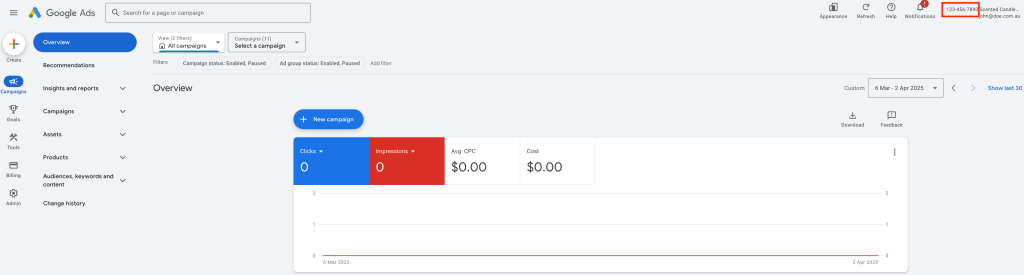
Log in to Google Ads and locate your Client ID in the top-right corner of the screen. Send this to us via email.
Step 2: Accept the Access Request
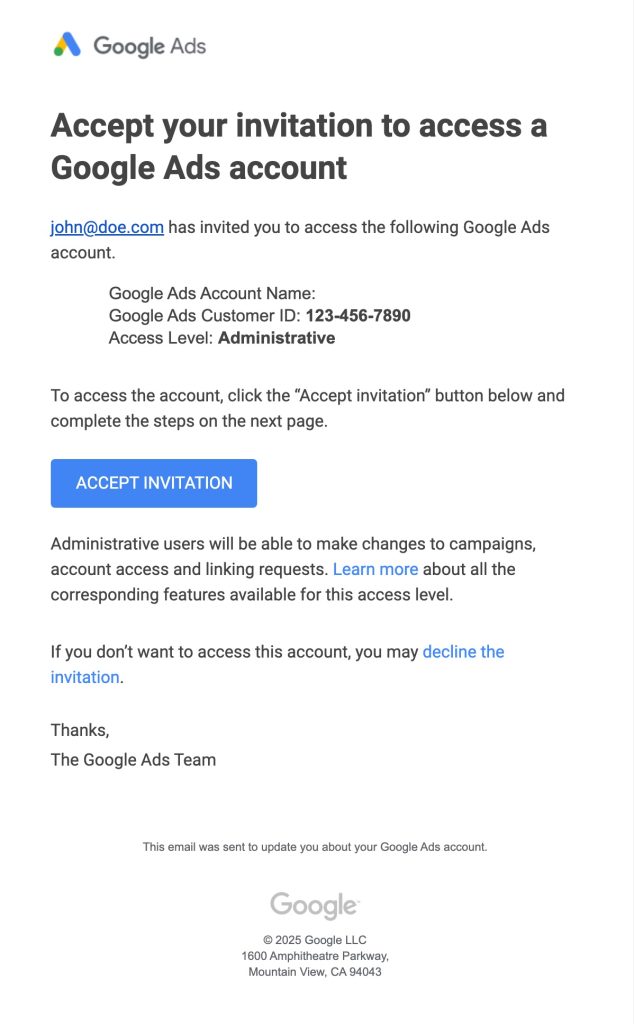
Once we have your Client ID, we’ll send you a request to access your account. You can accept it in one of two ways:
- Via email – You’ll receive a notification email with a link to accept the request.
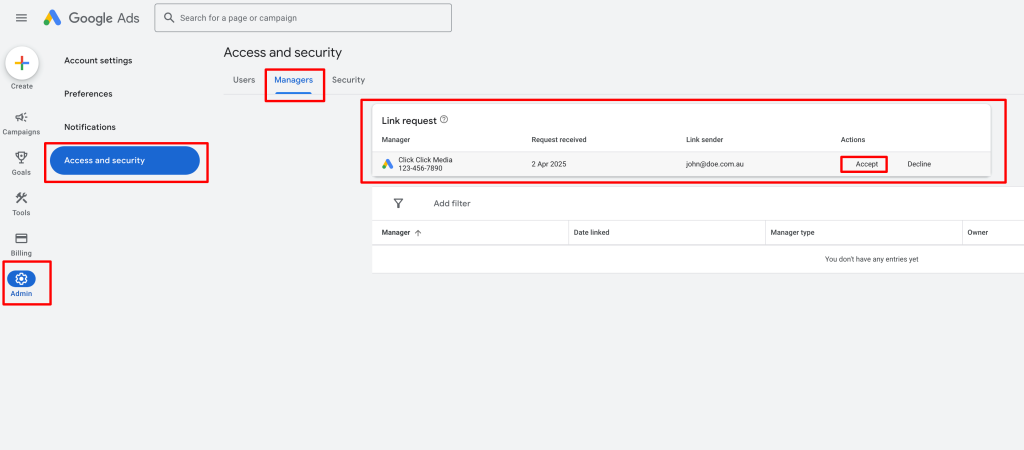
- Via Google Ads – Log in, go to Admin → Access and Security, and accept the link request.
Google Tag Manager (GTM)
Step 1: Log In
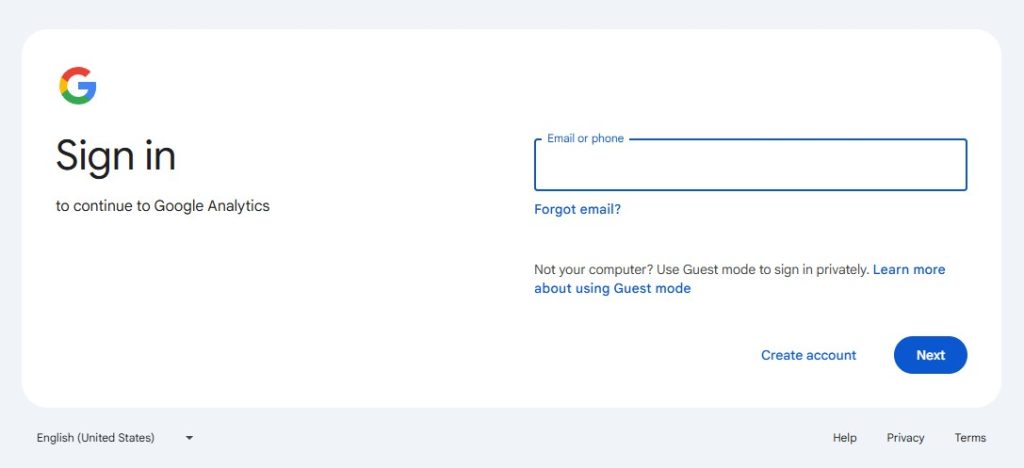
Visit tagmanager.google.com and sign in with the Google account that manages the container you want to share.
Step 2: Open User Management
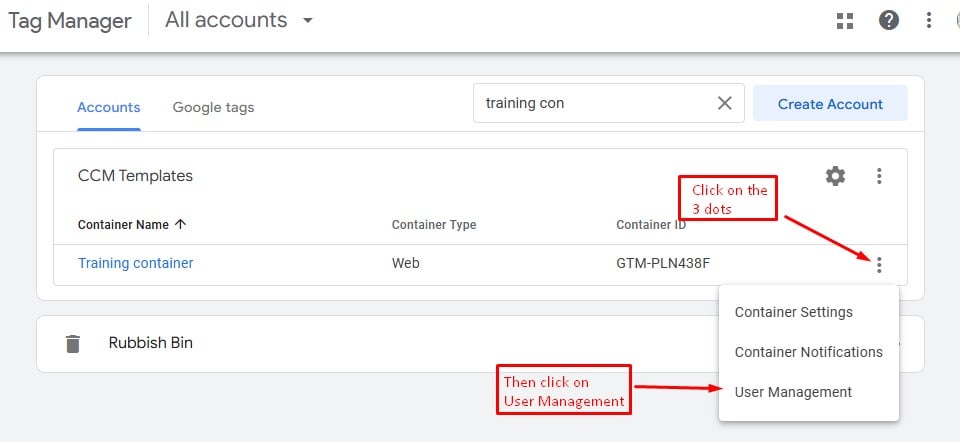
Click the three dots (⋮) next to the container you want to share and select User Management.
Step 3: Add a User
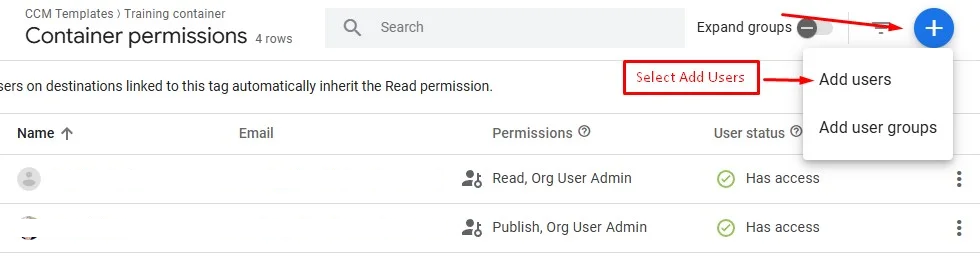
Click the plus (+) button and select Add Users.
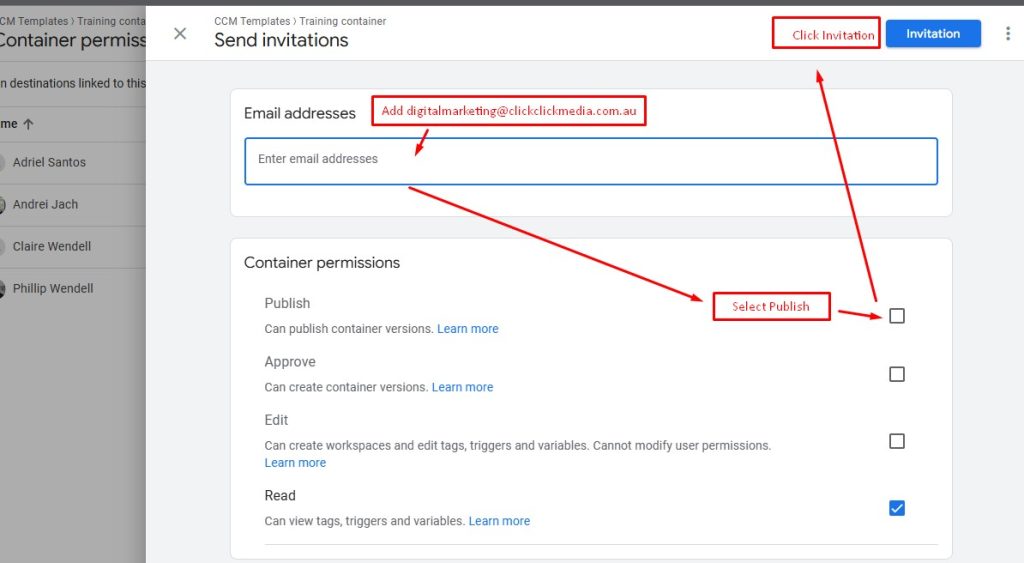
Enter digitalmarketing@clickclickmedia.com.au, set the permission to Publish, then click Invite.
How to Give Access to Your Google Merchant Center Account
Step 1: Log In
Go to merchants.google.com and sign in with the Google account that owns your Merchant Center.
Step 2: Open Account Access
In the top-right corner, click the Settings (⚙️) icon, then select Account access.
Step 3: Add a New User
Click the plus (+) button, then enter the email address provided by CCM (must be a Google account).
Step 4: Choose the Access Level
Select the appropriate role:
| Role | Description |
|---|---|
| Admin | Full access, including user management. Only use if you’re comfortable with the agency managing everything. |
| Standard | Can manage product feeds, campaigns, and settings, but cannot add or remove users. Recommended for most agencies. |
| Email Contacts Only | Receives notifications only – cannot log in to the account. |
Step 5: Send the Invite
Click Add user. We’ll receive an email invitation and accept it to gain access.
Also running Google Shopping campaigns? You’ll need to link your Google Ads account under: Tools & Settings → Linked Accounts → Google Ads → Link Account
Google Analytics 4 (GA4)
Step 1: Log In
Visit analytics.google.com and sign in with the Google account that manages your property.
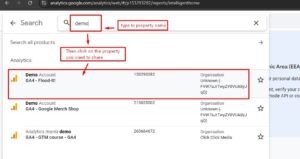
Step 2: Select Your Property
Search for or select the property you want to share, then click on it in the list.
Step 3: Open Admin Settings
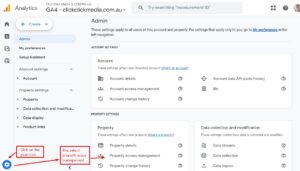
Click the gear icon (⚙️) at the bottom-left to open the Admin panel, then select Property Access Management in the middle column.
Step 4: Add a User
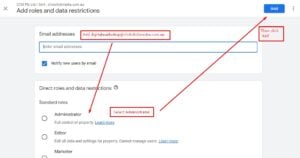
Click the plus (+) button and select Add Users.

Enter digitalmarketing@clickclickmedia.com.au, set the role to Administrator, then click Add.
Google Business Profile (GBP)
Step 1: Log In
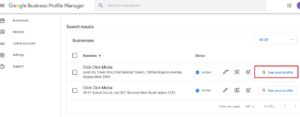
Go to business.google.com and sign in with the Google account that manages your business listing. If you manage multiple locations, select the relevant one.
Step 2: Open Business Profile Settings
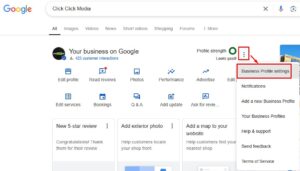
Click the three dots (⋮) and select Business Profile Settings.
Step 3: Manage People and Access
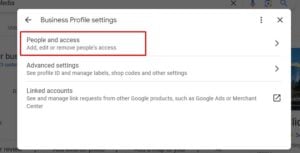
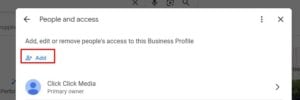
Select People and access, then click Add.
Step 4: Invite CCM
Enter the CCM Organisation number provided to you, set the role to Manager, then click Invite. If your website also embeds a Google map, our Google Maps API key setup guide covers creating the key, restricting it and turning on billing.
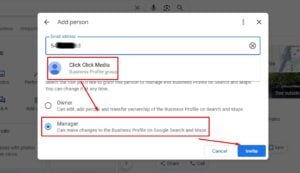
The recipient will receive an email to accept the invitation.
Google Search Console (GSC)
Step 1: Log In
Visit search.google.com/search-console and sign in with the Google account that owns or has access to the property.
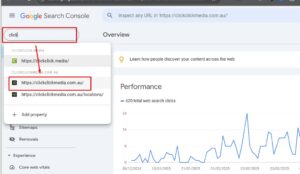
Step 2: Select Your Property
From the top-left dropdown, select the website property you want to share. If you don’t see your site, make sure you’re logged into the correct account, or add the property first.
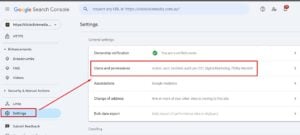
Step 3: Open Users & Permissions
In the left-hand menu, scroll down and click Settings, then select Users and permissions.
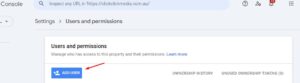
Step 4: Add a User
Click Add User, enter digitalmarketing@clickclickmedia.com.au, set the permission to Owner, then click Add.
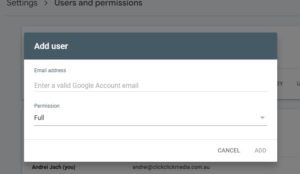
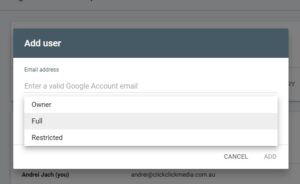
Access is granted immediately – no invitation acceptance is required.
Still need help?
Not sure where to start? Don’t stress – just reach out to your Click Click Media account manager or get in touch here and we’ll take care of it together. We can walk you through each step over a quick call, or handle the process on your behalf once access is granted.
